Qty Matrix - Description
This is a Club Prophet Executive Report v4 – Power BI or PBI.
Note: Samples are using demo data and do not reflect real-world data.
The Qty Matrix - Description is a matrix report which provides a unique feature to drill down thru data by both Columns and Rows. This report provides the Quantity of Items sold in a given time frame and will allow you to drill down thru different levels of description and dates.
Note that we simply flipped the Qty Matrix – Date report to make the rows by Description and columns by Date.
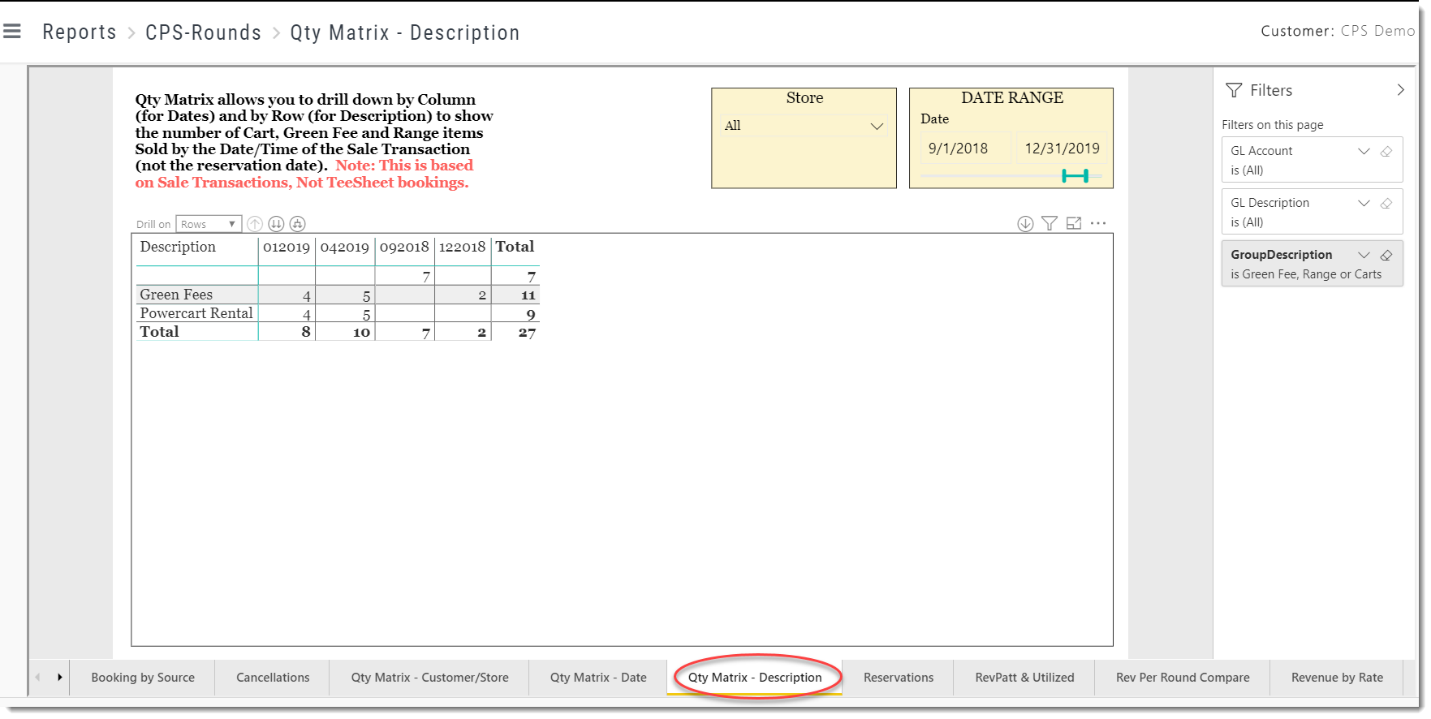
The top level of the sample report above is by GL Description and shows the number of Items sold in the Date Range filter by Year.
To see the Matrix control options, click on the report visual
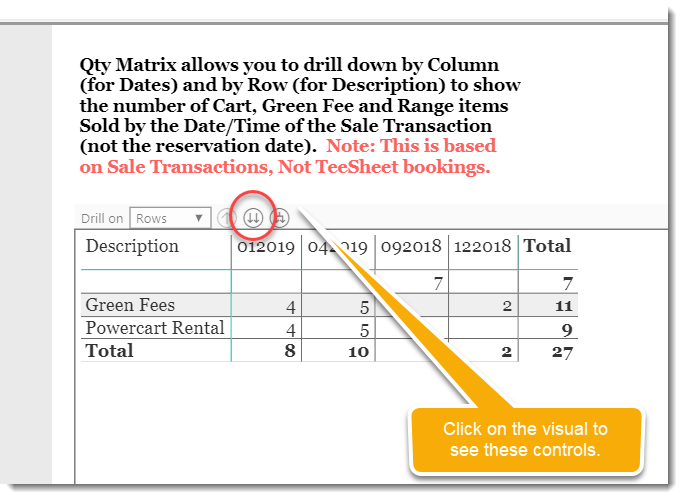
This will display the usual Drill Up/Down arrows but notice with Matrix type visuals there is a new control for Drill On: [Rows/Columns] drop-down menu.
Stepping thru the Rows drill-down:
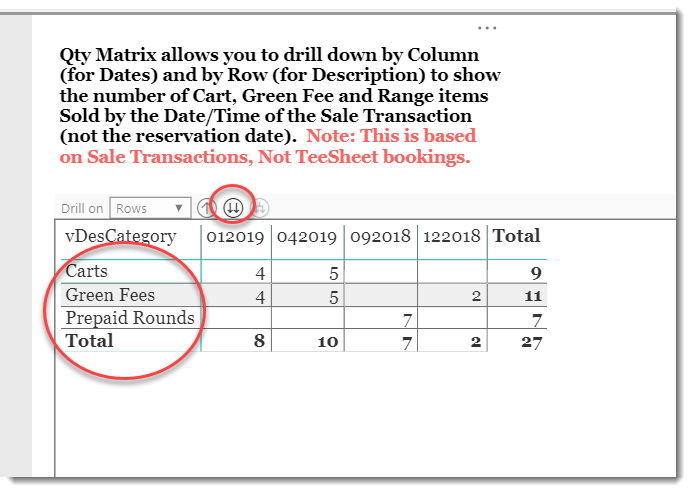
With the Drill On set to Rows, click the double-down arrow to Go to the next level…
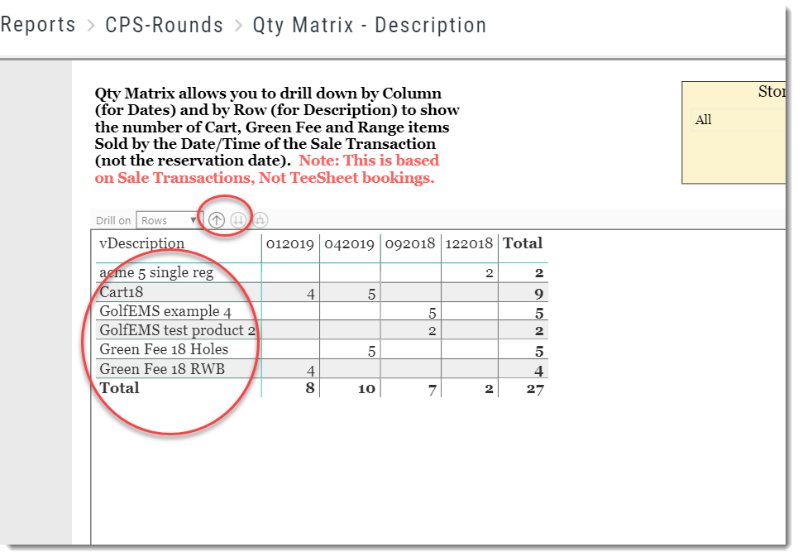
The report now drills down from GL Description to Sale Category Description and finally to the Item/SKU Description showing Quantity of items sold for each MMYYYY date.
Repeating the drill down action, you can drill down to Week of the Year and then to individual days/dates.
The report now Drills Down to the Date level with counts for each GL. Note the Drill Down arrow is now disabled as this is the lowest level in the hierarchy. You can however Drill Up.
To show the Columns Drill Down, drill back up to the top level and click the Drop-Down arrow for the Drill On feature:

Clicking the Drill Down arrow, select Columns and drill down.
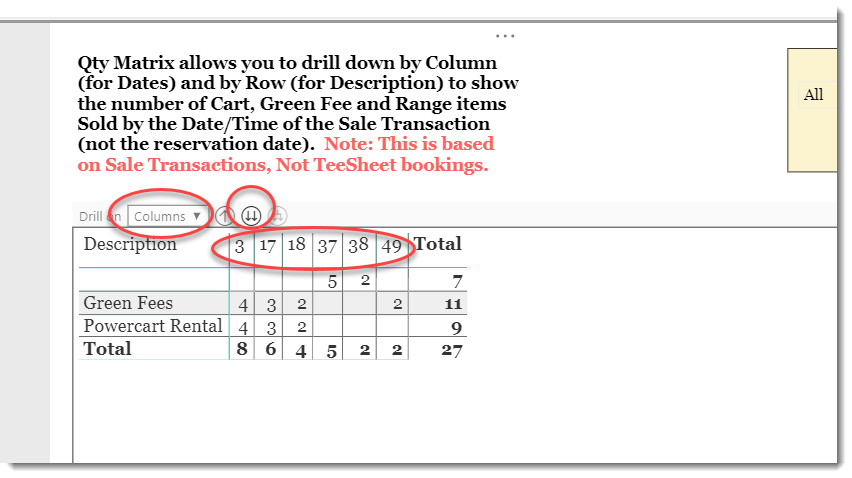
You can now drill down to the Week of Year data.
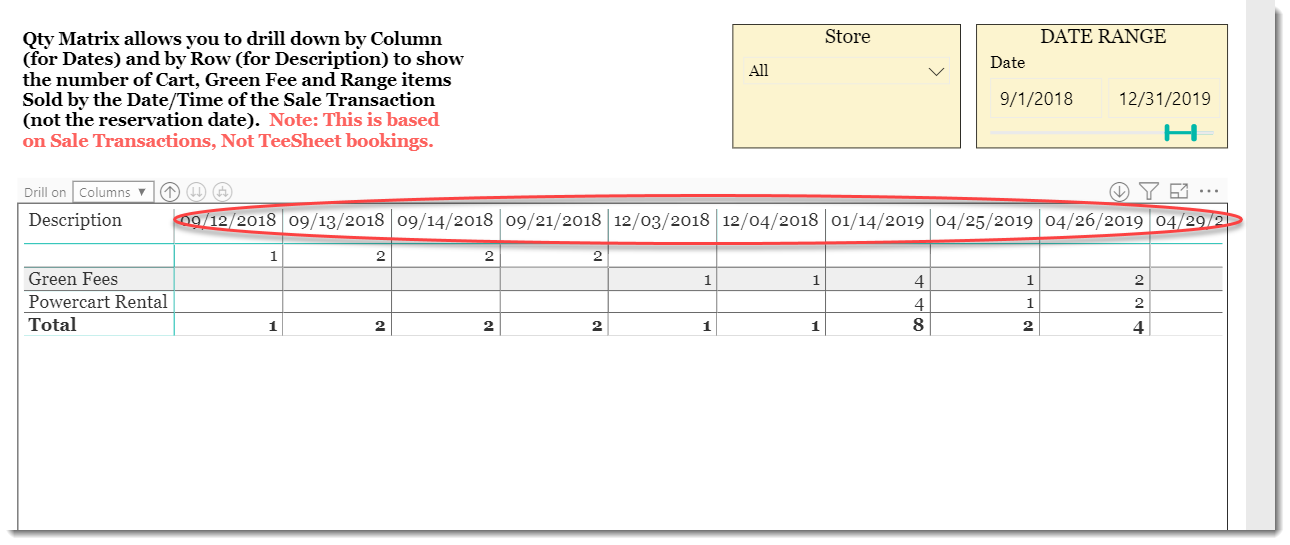
Drilling down again will go the actual Date/Day.
Of course, you can mix and match Row and Column Drill Down!
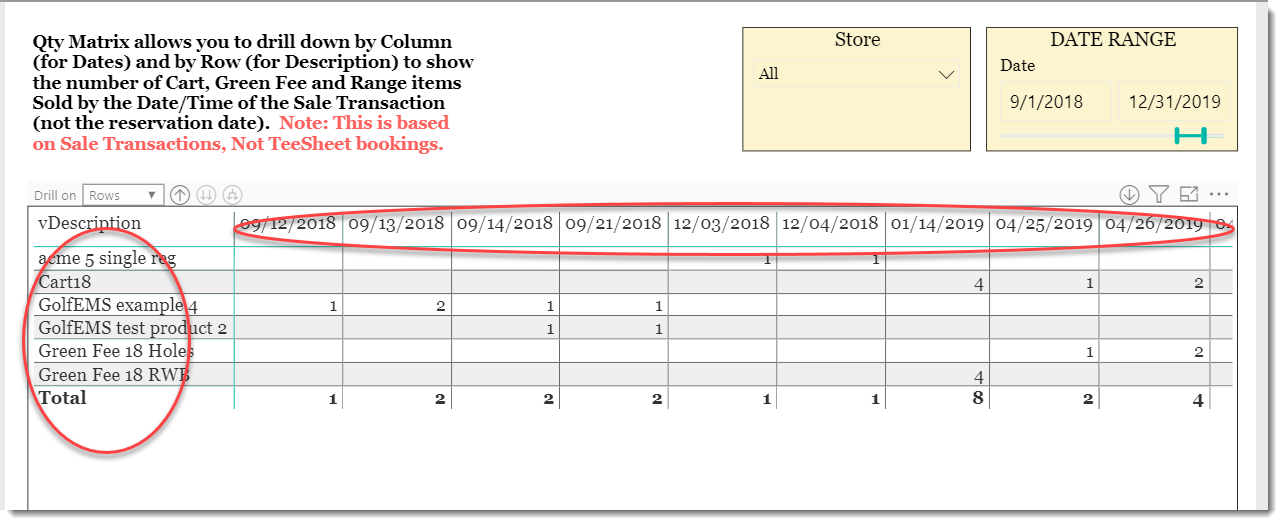
So, by drilling down on columns to the Date and the columns to the Item/SKU level, you can for example, compare items sold by each date.
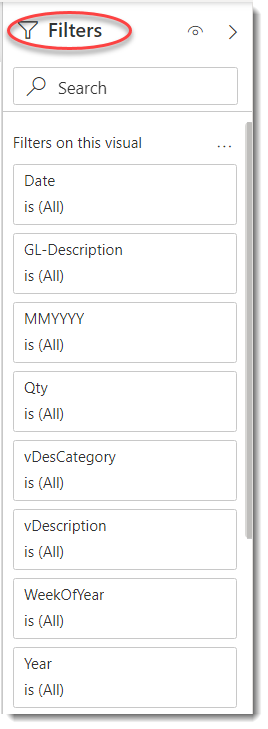
FILTERS
In addition to the Date Range slicer, the right-side menu of this report provides various Filters to allow you to filter the data in a number of ways. Click on any of the Filter fields for basic and advance filter and search options.
Tips
- Filters which are the gold back color controls on the report allow you to pick from a list. Hold down the Ctrl key on the keyboard to select multiple items.
- If you want to search for a particular value, use the filters in the right pane menu. They will have a search box in addition to a list of the items.
- Use the Advanced option in the right menu panel for advanced search options.
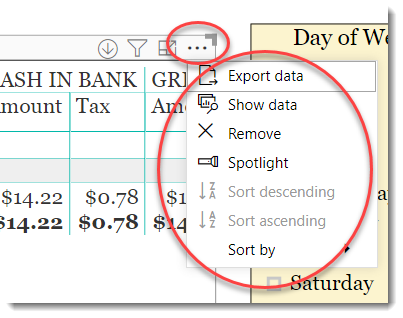
- Use the three dots […] in the top right of a visual for more options like Export data.
- Use the Help button to open the user guide for any given report
 .
.